Check the phone and company settings first
Use our compatible iPhone guide to identify whether the handset supports Apple Intelligence. On a company-managed phone, check with the device administrator before changing software or enabling features. A setting can be deliberately restricted as part of the business configuration.
The setup steps below follow Apple's Apple Intelligence support guidance and iPhone Writing Tools instructions, checked on 10 September 2026. Menu details may change with software updates.
Turn on Apple Intelligence
- Install the latest iOS version approved for the phone by your business.
- Open Settings, then Apple Intelligence & Siri.
- Ensure Apple Intelligence is turned on, where the setting is available.
- Allow the required models to download. Keep the phone connected to Wi-Fi and power while this completes.
- Confirm the device and Siri use the same supported language.
Leave time for setup before a training session. A phone that has just updated may still be downloading what a feature needs.
Apple's new feature announcement page gives 14 September for the next release. This guide was written before that date and does not assume the forthcoming Siri AI beta is already available on your phone.
Try Writing Tools with a simple draft
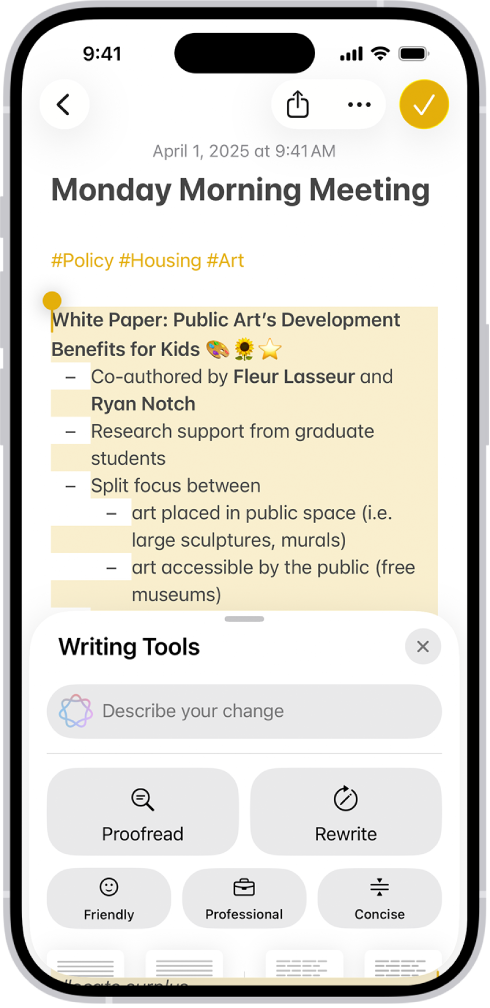
Open an application where you can write and select text, such as Notes. Start with a made-up internal message that contains no customer or confidential information.
For example:
Please bring the display stand to the team session on Thursday. We need it ready before the session begins. Let me know if transport is a problem.
Select the text, open Writing Tools, then try Proofread. Review the proposed edits. Next, compare a rewrite or a different tone using the options shown on the device. Apple's guide explains the controls for returning to the original text.
Do not treat the generated wording as approved simply because it sounds more professional. Check that Thursday stays Thursday, that responsibility has not changed and that no new promise has appeared.
Check a result in four passes
| Pass | What to inspect |
|---|---|
| Facts | Names, quantities, dates, locations and reference numbers |
| Meaning | Whether the request, limitation or commitment changed |
| Tone | Whether it suits the recipient and your normal business voice |
| Action | Whether the reader can tell who needs to do what next |
For a summary, compare the result with the complete source. Missing an exception can matter more than shortening the text. Keep the original available until the work has been reviewed.
If Apple Intelligence is not showing
Work through the checks in a sensible order rather than repeatedly resetting the phone.
- Confirm the exact iPhone model is supported.
- Check the installed software and whether the required feature exists in that version.
- Review the available storage against Apple's current requirements.
- Confirm the device and Siri language settings are compatible.
- Allow setup downloads to finish.
- Ask the administrator whether company settings restrict the feature.
- Check Apple's feature-specific language and regional availability.
If the issue remains, record the model, iOS version, relevant setting and what happens in the app. That gives your administrator or support provider a clearer problem to investigate. Do not remove company management to make a missing option appear.
Teach the task, then decide whether to expand
Once the example works, choose one permitted real workflow. Explain what staff may enter and who reviews the result. The business use guide suggests ways to measure whether the feature is helping.
If a phone cannot support a required feature, compare replacement options as part of the wider business iPhone buying process. Consider coverage, management and support alongside AI.
Frequently asked questions
Why can a colleague see a feature that I cannot?
Model, software, language, region, app and company settings can differ. Compare those details before assuming the device is faulty.
Does switching on Apple Intelligence enable every announced feature?
No. Individual features have their own requirements and rollout timing, including the announced Siri AI beta.
Can I use Writing Tools in every application?
Apple describes broad availability, but the exact application and text field should be tested. Try a simple supported writing task first.
Should I bypass a company restriction to try it?
No. Ask the administrator about an approved pilot. Company controls should be reviewed through the person responsible for the device configuration.
Continue your business comparison
- Which iPhones Support Apple Intelligence? UK Guide
Check Apple Intelligence iPhone compatibility, software and language requirements. Review an existing business fleet before buying iPhone 18 replacements.
- Apple Intelligence for Business
Explore Apple Intelligence for business: useful iPhone AI tasks, Siri AI launch timing, compatible devices and a practical pilot for your team.
- Apple Intelligence Privacy
Understand Apple Intelligence data handling, company settings and external integrations. Plan a practical AI pilot and management checks for work iPhones.
- iPhone 18 Pro Business Deals UK
Explore iPhone 18 Pro business contracts for UK teams. Compare storage, network coverage, launch timing and full costs, then request a tailored quote.
Put your business requirements into a quote
Tell us your preferred models, number of lines, coverage locations and renewal dates. We will check the available options and explain the costs.
Compare business options