What to know before you choose
- Start with manual screening so you can test the experience for customers and suppliers.
- Automatic screening has separate controls for the types of calls you want screened.
- A caller stating a name is not identity verification. Check important requests through your usual process.
What Call Screening does
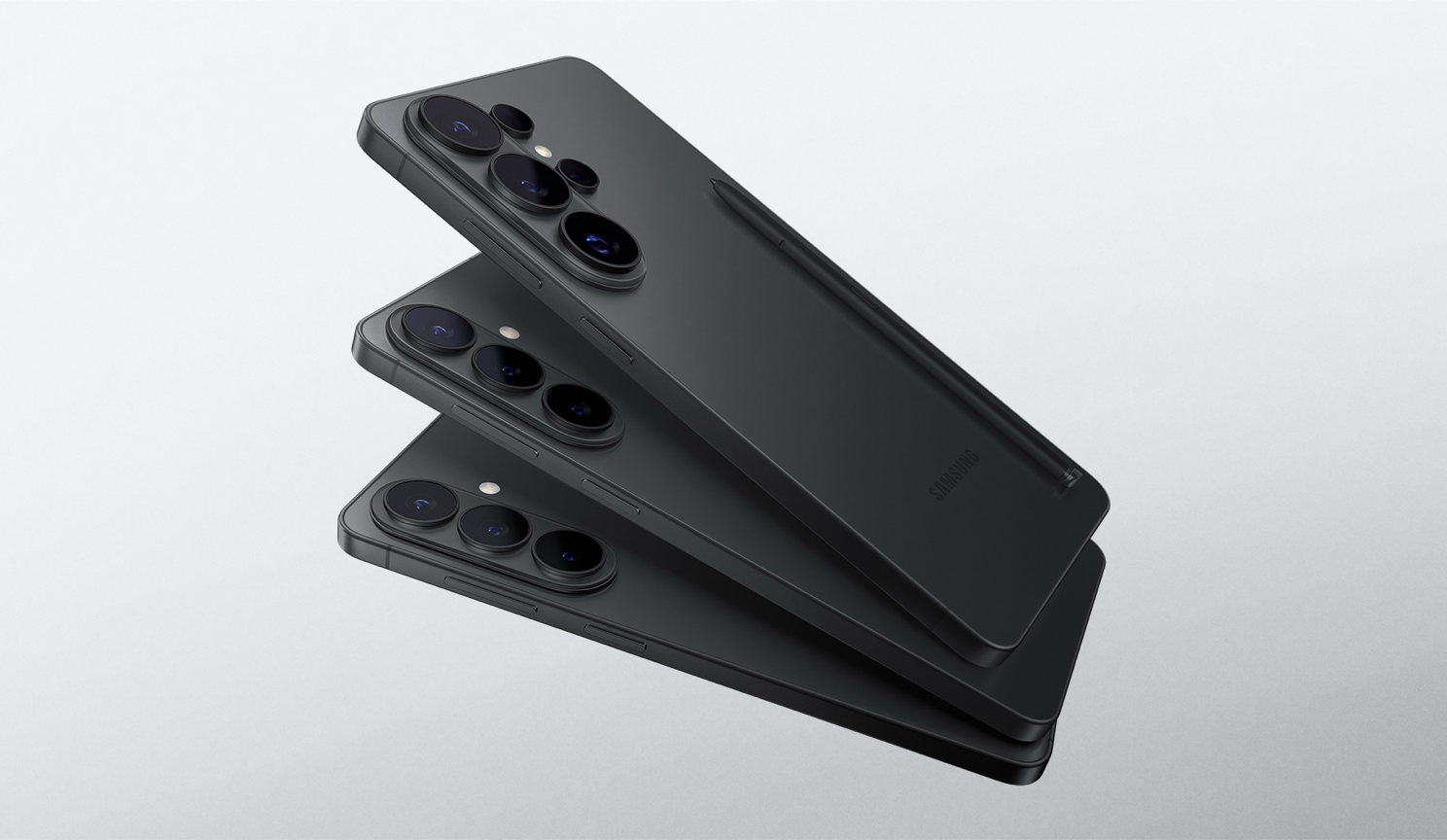
Samsung's Galaxy S26 Call Screening uses a call assistant to greet the caller and ask the reason for the call. You can see the exchange without immediately speaking, then join the conversation yourself. Text call can read a typed reply aloud when you cannot talk.
That can be helpful when an employee is in a meeting or needs to judge an interruption. It is a handset tool for the individual user. If several people need to answer the same number, compare the requirements with your business phone system as well.
Turn it on
- Open the Samsung Phone app and its More options menu.
- Open Settings, then Call screening.
- Select the language and enable the Call screening switch.
- Place a test call from another phone before using it with real enquiries.
Samsung's UK instructions cover the Galaxy S26 series. Menu names can differ with the phone, software and app version. If the setting is missing, check the device and software against Samsung's setup instructions rather than assuming a network fault.
Screen one call manually
When a call arrives, select Call assist, then Call screening. Read the caller's response. Use the call control to join, or choose Text call to type a reply for the assistant to speak.
This is a useful first pilot because the employee chooses when to screen. Test whether the caller understands the greeting, whether the displayed text is clear and whether taking over feels natural.
Choose automatic screening carefully
In the Call screening settings, Auto screen calls lets you select the call types to screen automatically. An unfamiliar number may be a new customer, a delivery driver or a colleague using a different phone.
Try each proposed rule using the actual types of call your team receives. Listen from the caller's side, including a noisy environment or a weak connection. Ask whether a person seeking help can reach the employee without confusion.
Avoid rolling out a setting simply because it is available. Agree which roles benefit, which lines need a more direct greeting and who can change the settings.
Check records and handling
Samsung's instructions describe reviewing the exchange from the Phone app's recent-call details. Treat the captured information as part of your business's call-handling process. Agree access, retention and how staff should respond to a request that contains sensitive information.
Call Screening is not a substitute for verifying identity. A person can claim to be a supplier or a bank in a recorded reply just as they can during an ordinary call. Use your established verification steps before changing payment details or disclosing information.
A business pilot before wider use
- Call from a saved contact and a number the phone has not seen before.
- Check how the selected language handles names and business terminology.
- Practise joining the call and sending a short typed reply.
- Confirm how the settings work with the device's management policies.
- Review the caller experience with the employee who will use the feature.
For a broader productivity pilot, pair this with Galaxy AI meeting notes. For the handset choice, compare the Galaxy S26 range against the employee's other work requirements.
Frequently asked questions
Does Call Screening block every nuisance call?
No. It helps screen calls and gives the user information before deciding how to respond. It cannot establish that a caller is honest or eliminate all unwanted calls.
Can I take over after screening starts?
Yes. Samsung describes taking over the screened call using the call control. Practise the process with a test call before relying on it for business enquiries.
Should I screen every unknown number automatically?
Test that rule first. Unknown numbers can include new customers and legitimate business contacts. Choose settings that fit the line's purpose.
Is this a shared receptionist for the company?
It is a feature on the individual handset. Shared numbers, queues, team handover and reporting need a separate assessment of your business calling service.
Samsung sources and further reading
Product and support details checked against the sources below on 8 September 2026. Confirm the exact UK model and terms with your quote.
Put the right Samsung devices to work
Tell us the roles, number of handsets, work locations and renewal dates. Request a comparison of device, network and contract options for your business.
Get a free Samsung quoteMinimum 24-month business contracts. Availability, Enterprise Edition benefits and any software or service charges are confirmed with your quote.